



**Updated for the Office 365 Migration**
October 2016 – These instructions work for macOS Sierra (10.12) as well as prior OS versions
Your Río Hondo email uses Office 365 for Education and is able to be synchronized with your macOS X computer. You will be able to use the built-in Mail, Calendar, and Contacts applications.
Please follow the steps below to configure your Río Hondo exchange account on your Macintosh computer.
Please ensure that your device is connected to the internet prior to following these steps.
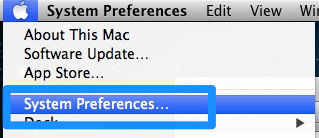
Click on the Apple icon in the upper left-hand corner of your screen and select System Preferences.
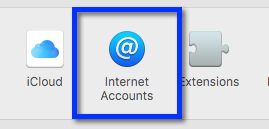
Click on Internet Accounts
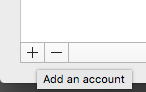
Click on the + button to Add Account
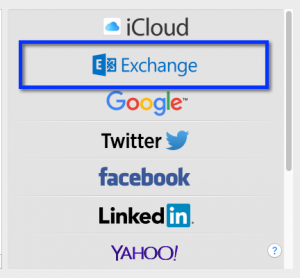
Click on Microsoft Exchange
Enter your name as you would like to appear on your outgoing email. Enter your full email address for Río Hondo in the Email field and include @ríohondo.edu. Enter your network password in the password field.
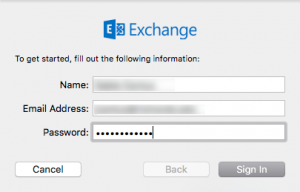
Click Continue.
Once the credentials are confirmed you will see the Account Summary confirmation box displaying your name, email, and server address.
If you do not see the Account Summary screen, please check that your email address and password are correct.
Click Continue.
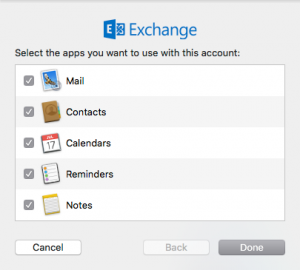
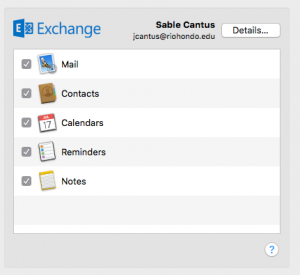
Confirm the services that you would like to synchronize with your Mac.
Please contact the help desk if you need further assistance.