Instructions for faculty and staff

Students: Please log in to your webmail using AccessRío.

You can use the Microsoft Outlook mobile app to access your campus email, calendar, and contacts. Outlook is supported on most mobile devices (phones and tablets). You can get a copy of Outlook Mobile here.
Three smartphones display different interfaces of an email and calendar application, showing messages and scheduled events.

Open Outlook Mobile and Select Get Started
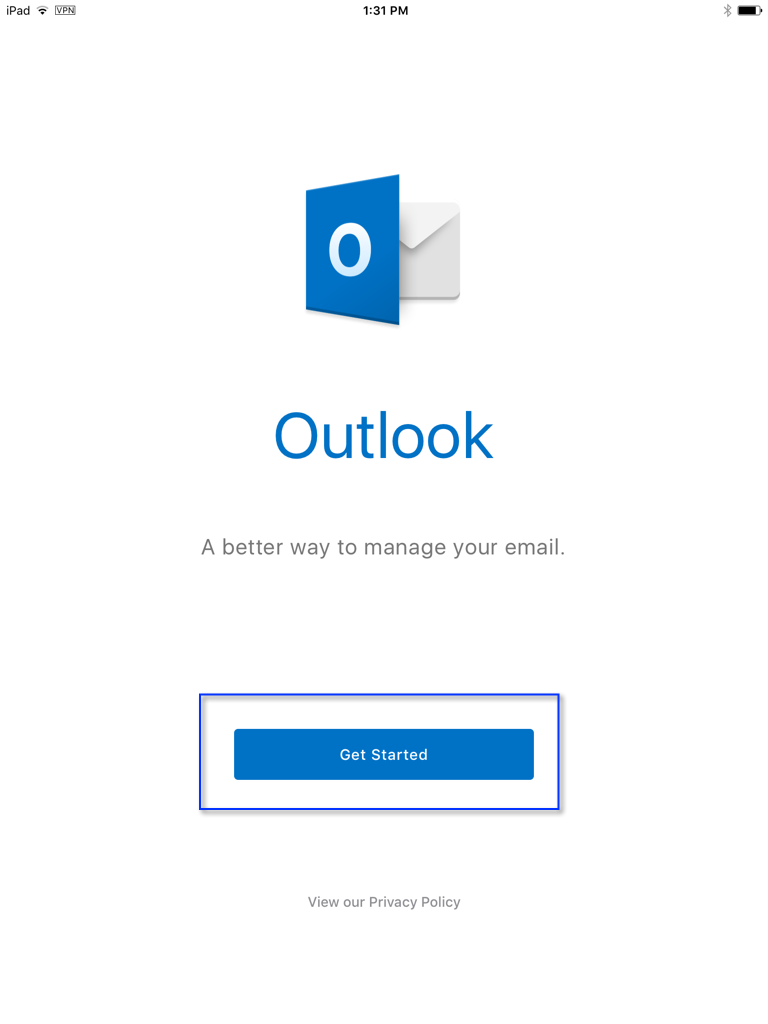
Outlook app welcome screen with Outlook logo, the text "A better way to manage your email," and a blue "Get Started" button below.

Enter your Río Hondo email address and select Add Account
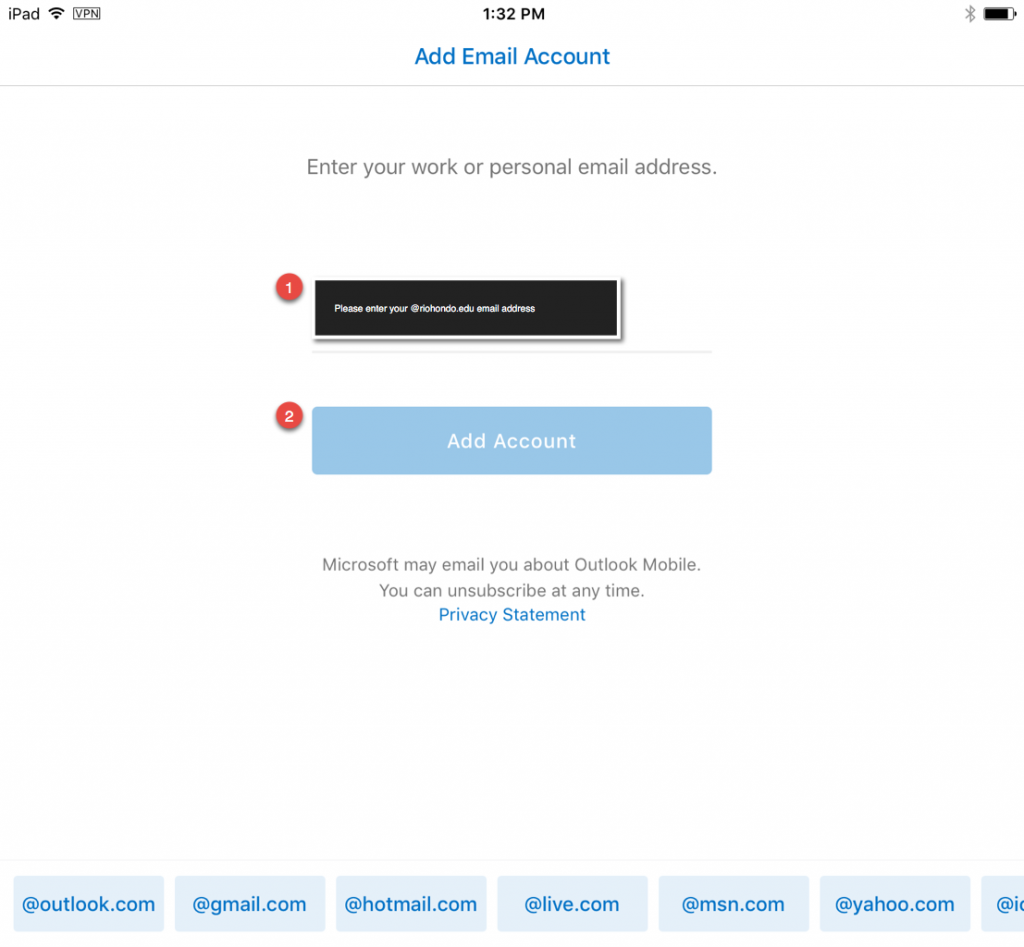
A screen displaying the "Add Email Account" page, prompting the user to enter an email address and click the "Add Account" button. Email provider options are shown at the bottom.

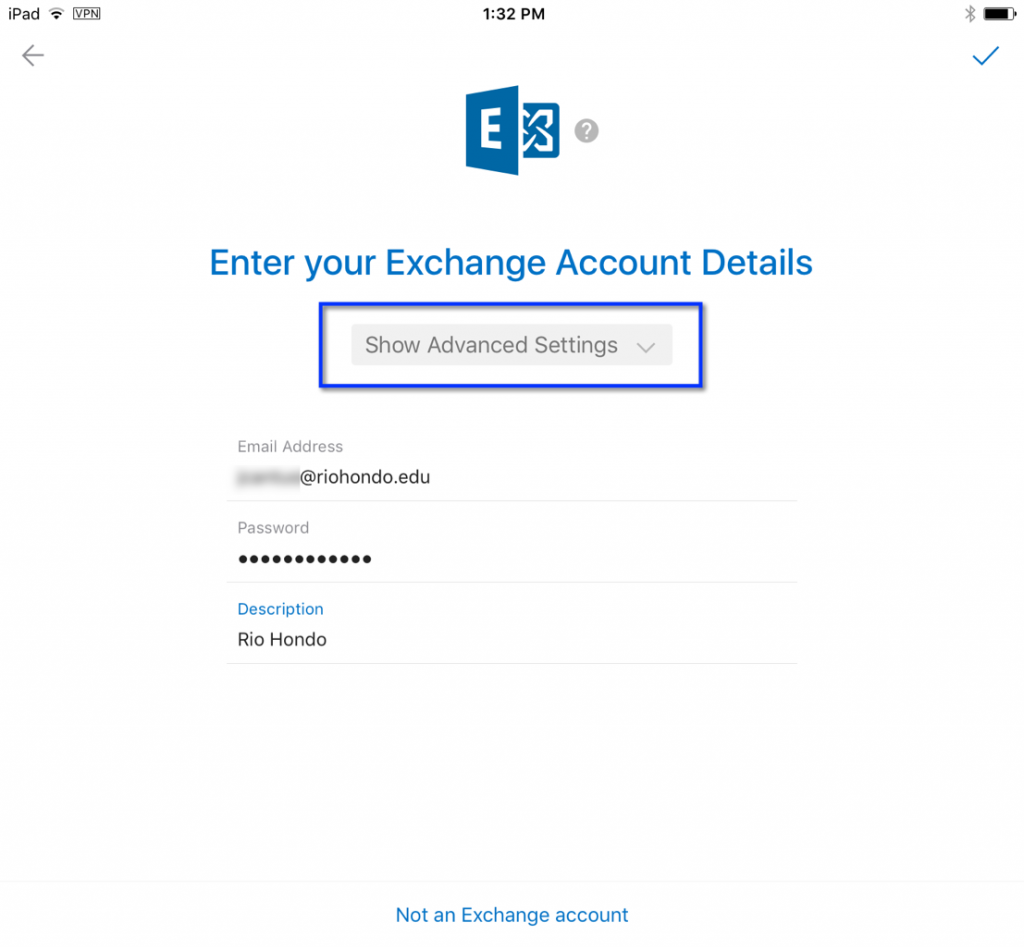
Select Show Advanced Settings

Exchange account login screen on an iPad showing fields for email address, password, and account description with a "Show Advanced Settings" button highlighted.

Enter the server address and name: outlook.office365.com
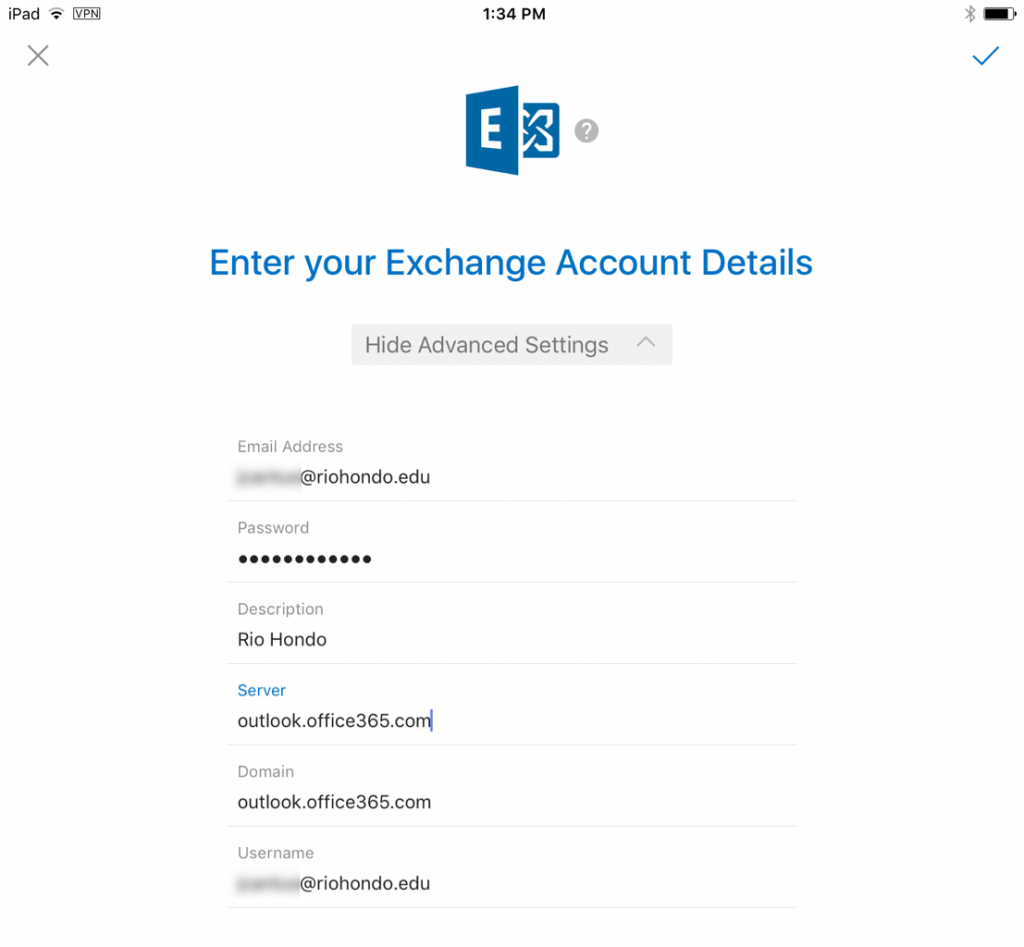
Exchange email setup screen showing fields for email address, password, description, server, domain, and username, with example data filled in for a Rio Hondo account.

Select the checkmark in the upper right to complete the configuration