

Using My Print to print from Windows
Printing your document
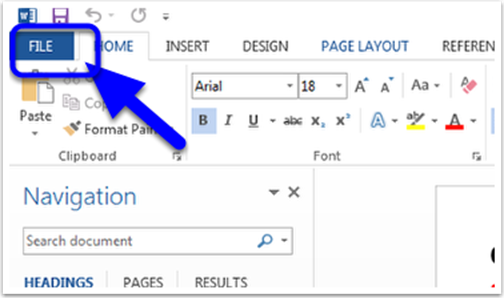
Select File
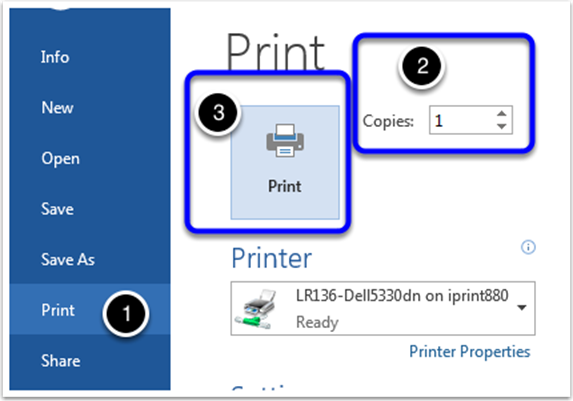
Select Print from the Navigation Menu
Select the number of copies and other print options. The selected printer should already by correct for the lab you are in. Click the Print button.
Authenticate your account
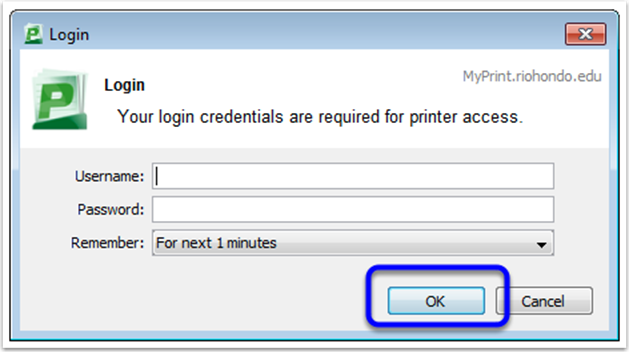
Authenticate with your My Print account when you see the Login dialog box. Select OK.
Verify and print
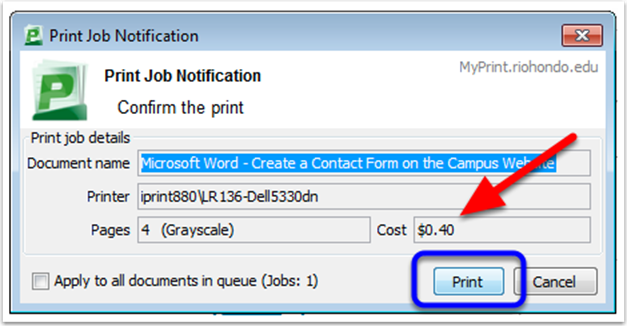
You will see a Print Job Notification dialog box. This will confirm which document you are printing, the number of pages, the selected printer, and the cost.
Please check that these settings are correct before you select print.
Select Print to print your document.
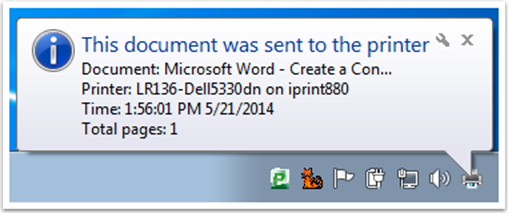
A Windows popup will confirm the document was sent. Please pick up your document from the printer.