

Two-factor Authentication
Two-factor Authentication is a method proven to increase the security of your account and data. Zoom now has the option of using an authenticator application to produce a Time-based One-Time Password (TOTP) that will be provided when you log in to ConferZoom with your regular username and password.
Login to ConferZoom
Navigate to ConferZoom and select Sign In. Log in with your existing credentials.
Turn on Two-factor Authentication
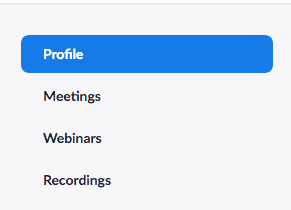
Navigate to your Profile in the left-hand menu and scroll down toward the bottom.
Select Turn on next to Two-factor Authentication.

Set Up Authentication App
Now that we have enabled two-factor for your account we will need to setup an application to manage your TOTP’s. I do not recommend using SMS as a login method. SMS has proven to be an unreliable security method.
You will need an authenticator application on your mobile phone. There are several to choose from including:
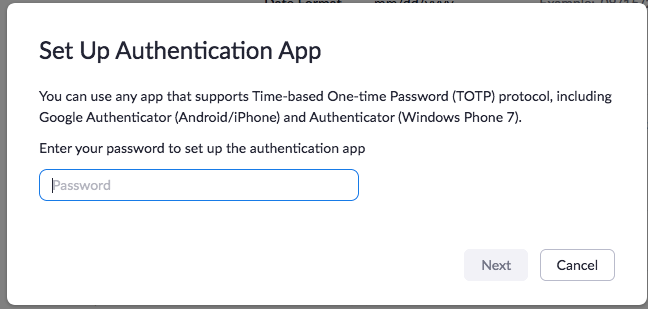
When you have an authenticator app installed on your device, navigate back to your profile and select Set Up next to Authenticator App.
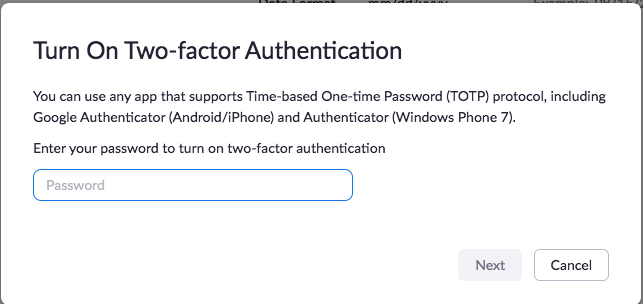
Enter your ConferZoom password when prompted.
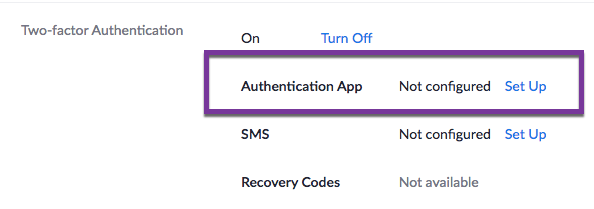
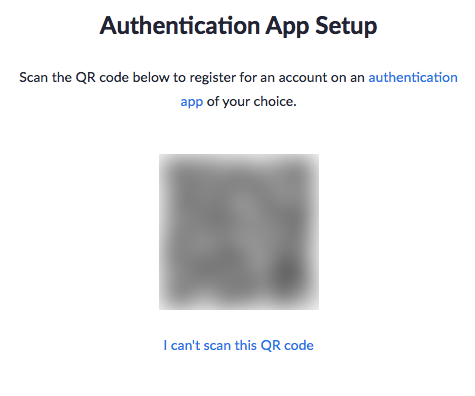
Open your authentication app and add a new site. Select Scan barcode and scan the QR code presented. Keep this code private. It is your personal key and should not be shared with anyone. Make a copy of the QR code and store it securely for future recovery if you lose access to your phone.
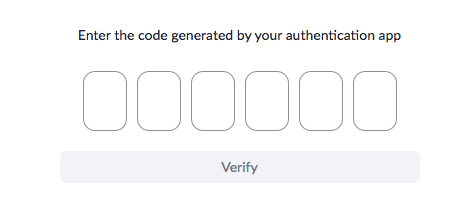
You will be prompted to enter the 6 digits from your authentication app to confirm that it is paired correctly.
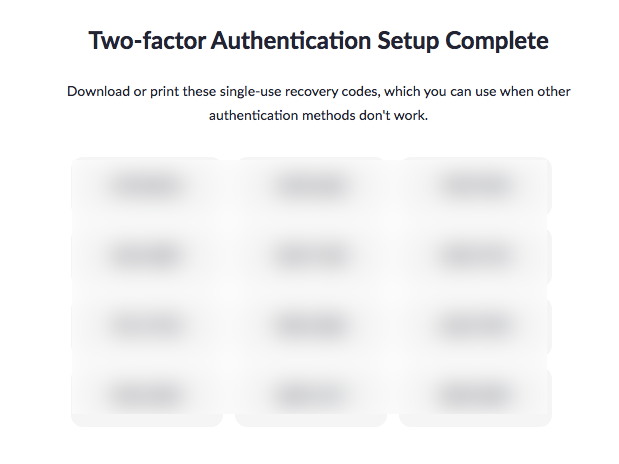
You will be given a set of 10 recovery codes that you can use when access to your authentication app is not convenient. Each code can be used once.
Keep them private in a safe place.
Your ConferZoom account is now secured. You will be prompted to enter the code from your authentication app the next time you log in to your ConferZoom account.
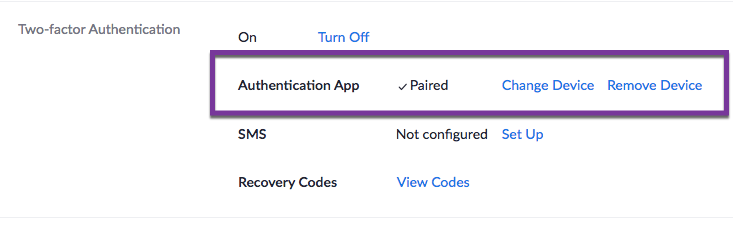
You can check the Two-factor Authentication status in your Profile.