
My Print is a pay-for-printing solution used at Río Hondo College.
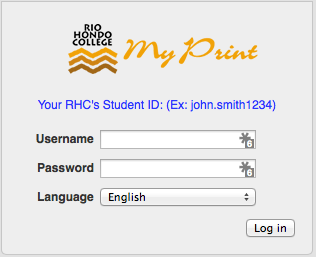
Login page for Rio Hondo College MyPrint with fields for username, password, language selection, and a login button. Instructions reference using a student ID.

Select Add Credit from the navigation menu
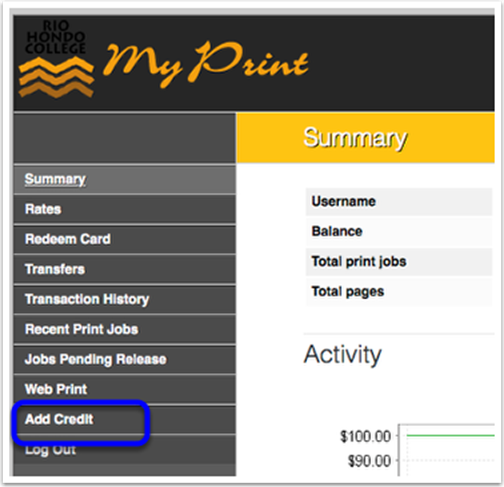
Screenshot of the Rio Hondo College My Print portal showing the navigation menu with "Add Credit" highlighted and a summary of print account details on the right.

Add credit using PayPal

This screen will display your username and current balance. Please confirm this is the account you want to add credit to.

Select the amount to add from the dropdown list and then select Add Value.
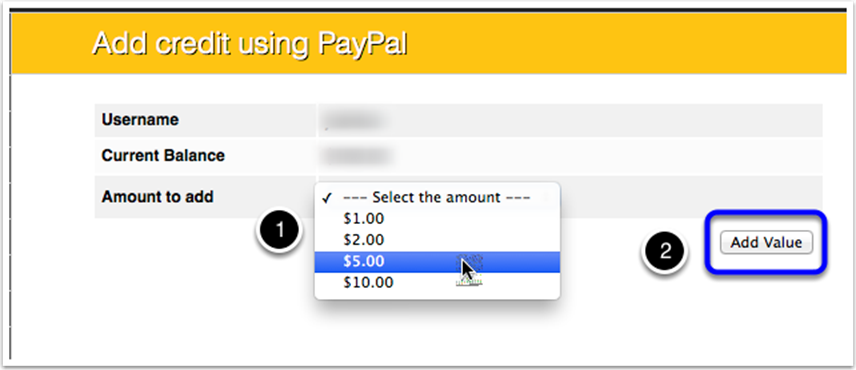
Screenshot of a PayPal credit addition page showing username, current balance, and a dropdown to select amount to add, with the cursor selecting $5.00 and an "Add Value" button highlighted.

PayPal Redirect

My Print uses PayPal to add funds from your credit card or PayPal account.

Select Have a PayPal account? to log in and authorize the transfer with your existing PayPal account.

If you do not have a PayPal account or you would like to use your credit card, select Don’t have a PayPal account?.
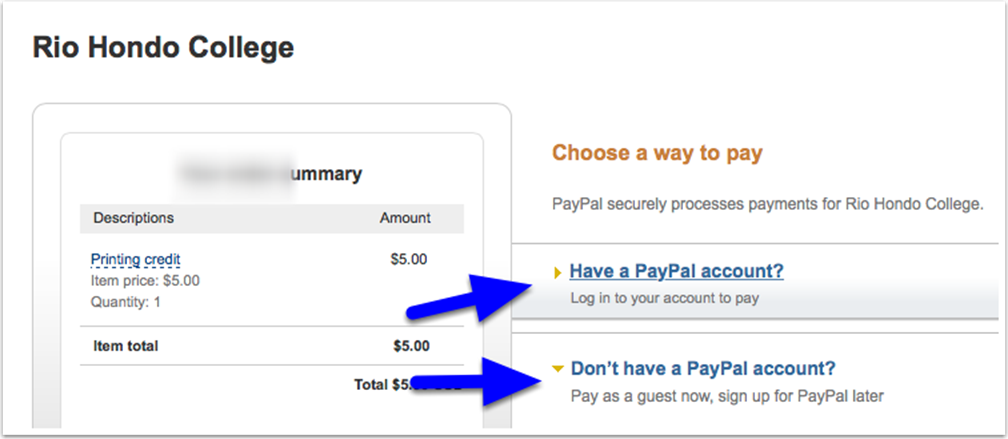
Screenshot of a Rio Hondo College online payment page showing a $5 printing credit charge and options to pay with or without a PayPal account.

Paying with a credit card

If you are paying with a credit card, select Don’t have a PayPal account?, enter your information, and select Continue.
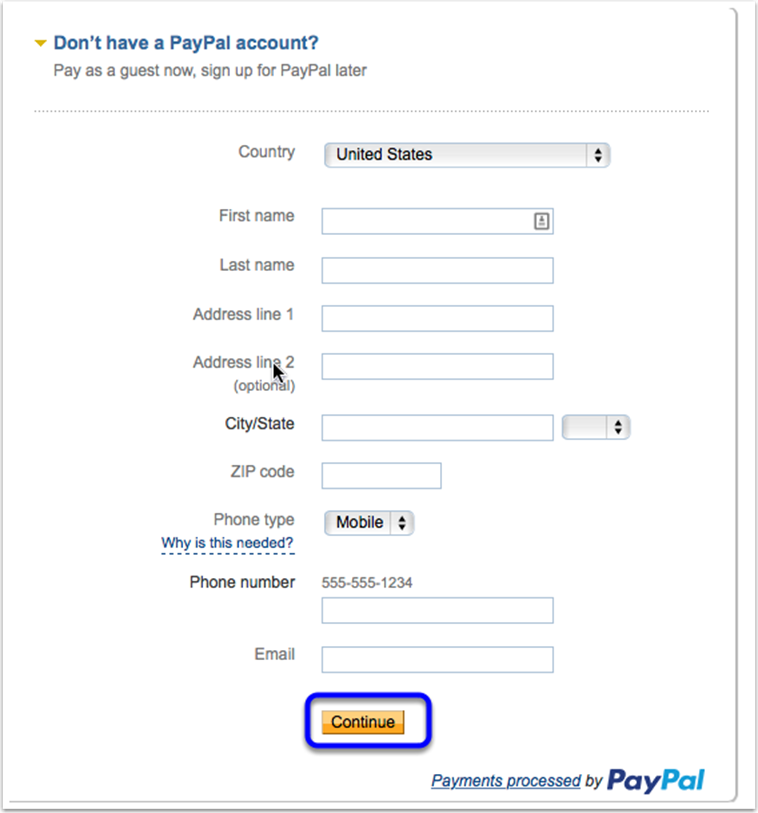
A PayPal guest checkout form requesting country, name, address, city, state, ZIP code, phone type, phone number, and email, with a yellow "Continue" button at the bottom.

Enter your credit card information

Select Continue to authorize the payment. You will then be re-directed to the My Print dashboard. You should see your updated balance.
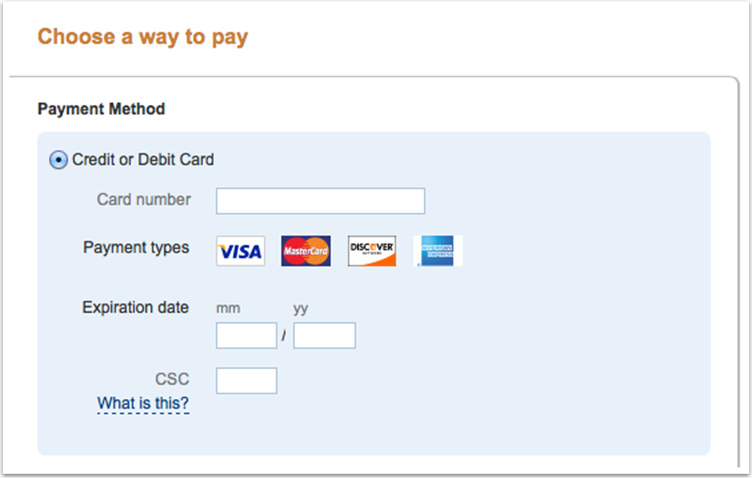
Online payment form with fields for card number, payment types, expiration date, and CSC. Options for Visa, MasterCard, Discover, and American Express are shown.